BT: switch on and personalise parental controls
Activate your broadband filters, choose a level that suits your household and manage allowed or blocked websites.
BT Parental Controls are included with BT broadband. They help you manage the websites available through your home connection.
Start by activating the controls, then review the filter level and any individual websites you want to allow or block.
What to have ready
Your BT ID, access to My BT and a device connected to your home broadband. Allow time for activation: BT says the filters can take up to two hours to become active. Enter your sign-in details only on BT's official website. Never send your password or security codes to Umbrello.
Who it helps
Parents and carers with BT broadband who want to reduce access to unsuitable websites across their home connection.
The checks to make
1. Find BT Parental Controls
Sign in to My BT with your BT ID.
Choose Manage your extras, then find the BT Parental Controls section and its management link.
The exact appearance of your account may differ from older screenshots, so use the official help page if you cannot find the controls.
I have found the parental-control settings.
2. Activate and check the status
Follow the activation process. BT's initial setting is the Light filter.
Look for the confirmation and check that the parental-controls panel shows On. Activation can take up to two hours, although you can customise settings while waiting.
If it still has not activated after two hours, follow BT's troubleshooting instructions, which include restarting the Hub.
Do not assume the filters are active immediately after requesting setup.
I have checked that the controls are active.
3. Choose a filter level
Open the parental-control settings and find the filter-level controls.
BT provides Light, Moderate and Strict levels. Review the categories included before choosing. Use Custom if you want to adjust individual categories.
Save your selection. BT's filter-level guide says a new level should become active within ten minutes. Initial activation can take longer.
Choose based on what your household needs, then check that useful education and support websites remain available.
I have reviewed and saved our filter level.
4. Manage individual websites
Open the allowed-and-blocked websites controls.
Add the website to the appropriate list and save your changes. Check carefully whether you are allowing or blocking it.
An allowed entry can make a website accessible even when its category is restricted. A blocked entry restricts the website across the broadband connection.
Review exceptions when you change the overall filter level.
I have checked our allowed and blocked websites.
5. Review the filtering schedule
Read the time settings before changing them.
BT's scheduling controls can include a period when parental controls are disabled. This is not the same as setting a bedtime internet limit for one child.
Check when restrictions apply and avoid adding an unfiltered period unless you intend to do so.
If using additional features such as Homework Time, read what they restrict before enabling them.
I understand when our filtering applies.
6. Check the result on home broadband
Use a device connected to your home broadband and check the saved settings.
Confirm that everyday browsing and useful school websites still work. If testing a custom block, use a harmless website rather than searching for unsuitable material. Remove a temporary test rule afterwards.
If a website is blocked incorrectly, review the filter level and website lists before changing broader protections.
I have checked the results on our home connection.
A conversation worth having
"We're setting some browsing boundaries for our home internet. If a useful website is blocked, or something upsetting gets through, tell us and we'll look at it together."
Official video
BT's own walkthrough of setting up parental controls. It opens in a separate tab so you can come back to this article.
Watch BT's official setup video(opens in a new tab)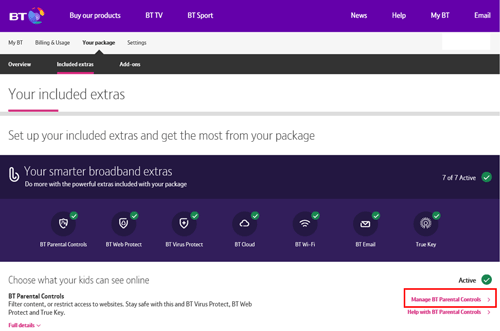
Example published by BT. This shows an older account layout; your screen may look different.
View BT's published example(opens in a new tab)What these settings can and cannot do
These are broadband filters, rather than individual profiles for each child. Adults and guests using the connection may encounter the same restrictions. They do not generally follow a child onto mobile data or another household's Wi-Fi. BT also applies these filters at UK EE WiFi hotspots when you sign in using the same BT ID. They also cannot make every interaction inside an app safe. If using a third-party router, follow BT's guidance: BT Parental Controls require BT DNS. Changing to another DNS service can bypass this filtering.
Official instructions and further help
Official sources last checked: 20 October 2026. Steps and menu names can vary between devices and software versions — if something looks different, use the manufacturer's official page.
Spot something inaccurate in this guide?Share feedback
Related guides
Virgin Media: set up safer browsing at home
Turn on the parental controls included with your broadband. Choose content categories and manage individual websites.
OpenDNS: free family website filtering
Choose simple FamilyShield filtering or customise categories and websites with OpenDNS Home. Start by checking your router.
Setting up an iPhone or iPad for your child
Using built-in parental controls, screen time settings, content restrictions, and purchase approvals to set up an Apple device for a child.