Does your Mac or Windows PC have antivirus?
Your computer may already have antivirus. Find out what is protecting it, check that protection stays up to date and choose the steps needed for your Windows PC or Mac.
By Umbrello · Updated · Version 1.1
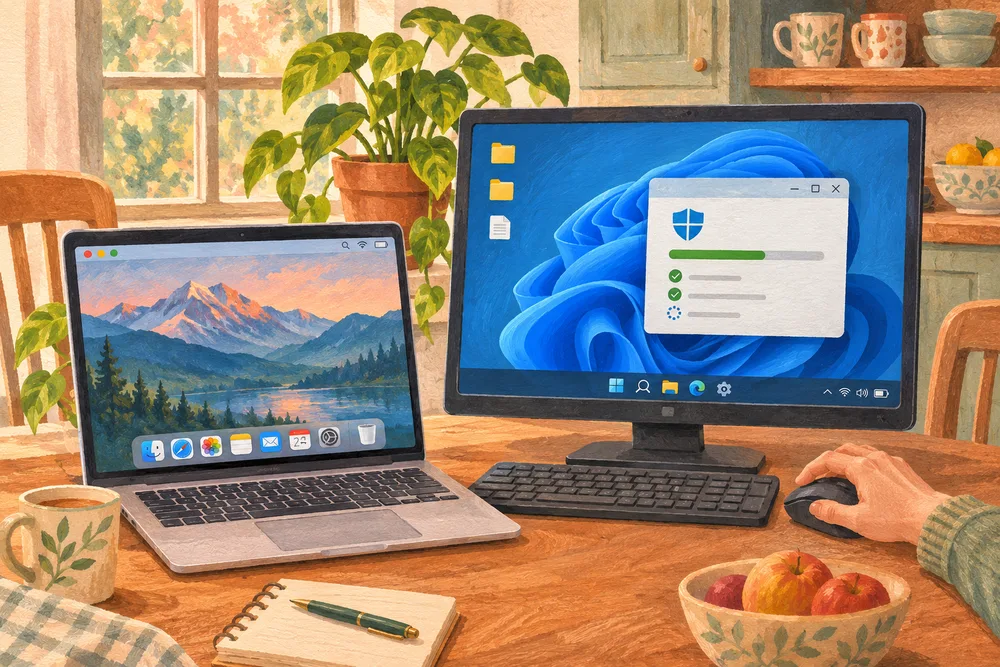
What to have ready
Sit at the computer you want to check and make sure it is connected to the internet. This is your home device we are checking, you could also check a work or school device but you might find that settings are restricted.
Who this is for
Anyone looking after a home computer. Open the sections marked Windows or Mac for the computer in front of you.
Take one check at a time. Open whichever feels useful today.
What is antivirus?
What is antivirus?
Antivirus (AV) looks for harmful software, also called malware. For example, it can stop a downloaded file from running if it recognises something harmful inside. Updates help it recognise new threats.
Windows and Mac computers both come with protection. Here’s how to check yours.
Windows · Is my antivirus switched on?
Windows · Is my antivirus switched on?
- Select Start, type Windows Security and open the app.
- Select Settings in the app, then Manage providers. Expand Antivirus to see which app is protecting your PC.
- If Microsoft Defender Antivirus is active, open Virus & threat protection. Under Virus & threat protection settings, select Manage settings. Make sure Real-time protection is On. This checks files as you open them.
- If Windows says no antivirus is active, return to Virus & threat protection and follow the prompt to turn protection on.
Other antivirus options are available. If another app is listed as active, open that app to check its status, updates and scan options. One active antivirus is enough.
Windows · Is my protection keeping itself up to date?
Windows · Is my protection keeping itself up to date?
- In Windows Security, open Virus & threat protection. Under Virus & threat protection updates, select Protection updates. Some versions show Check for updates here instead.
- Select Check for updates. Wait for it to finish and check the last update date. Windows calls the information it uses to recognise threats “security intelligence”.
- The built-in antivirus gets these updates automatically through Windows Update. Open Start → Settings → Windows Update. If updates are paused, choose Resume updates. On Windows 10, Windows Update is under Update & Security.
A quick check: Next time you use the PC, look at the last update date again before pressing anything. A newer date shows protection has refreshed since your check. If an error appears, reconnect to the internet and try Check for updates again.
Windows · Run your first full scan
Windows · Run your first full scan
If you’ve never run a full scan, or you can’t remember doing one, run one now. It checks files and programs across your PC and can take a while. Plug in your laptop first.
- Open Windows Security → Virus & threat protection.
- Under Current threats, select Scan options. Choose Full scan, then Scan now.
- Leave the PC on until the scan finishes. Return to Virus & threat protection to see the result. If Windows finds a threat, follow the recommended action. You can see what happened under Protection history.
Mac · Can a Mac get a virus?
Mac · Can a Mac get a virus?
Yes. A Mac can run harmful software too. Apple includes antivirus in macOS that works in the background. You don’t need to open an app or start a daily scan for it to work.
Apple recommends keeping macOS and its security files up to date. It also says the App Store is the safest place to get Mac apps. If a download comes from a link or pop-up you weren’t expecting, close it.
Mac · Check that security updates are on
Mac · Check that security updates are on
- Open the Apple menu in the top-left corner. Choose System Settings → General → Software Update. Install any macOS update offered when you’re ready to restart.
- Click the information button beside Automatic Updates. Turn on Install system data files and security updates. On some versions it’s called Install Security Responses and system files. On older Macs, look under System Preferences → Software Update → Advanced.
- If you use macOS 26.1 or later, also open System Settings → Privacy & Security → Background Security Improvements. Make sure Automatically Install is on.
A quick check: With automatic security updates enabled, your Mac can receive fresh protection in the background.
Mac · Would extra antivirus help me?
Mac · Would extra antivirus help me?
For everyday use, start with the built-in protection and automatic updates you’ve just checked.
If you want a button to scan a particular download or folder yourself, look for a reputable Mac scanner that offers on-demand scans. If you want an additional app to watch files as you use them, look for real-time protection with automatic updates and check whether it needs a subscription.
Choose software that supports your version of macOS and get it from the App Store or the developer’s official website. A pop-up claiming your Mac is infected is a good reason to close the page.
Sources and how we checked this guide
How this guide was checked
- Who this covers
- Antivirus checks for a home computer.
- Sources checked
- Coverage and versions
- Windows and macOS
- Preparation and review
- Checked against Microsoft Support and Apple Support.
- Testing
- Manufacturer documentation review.
What changed
- Version 1.0 · 12 November 2026: Prepared for first publication.
- Version 1.1 · 12 November 2026: Antivirus guide ready for editorial review and first publication.
Spot something inaccurate in this guide?Share feedback
Related guides

Microsoft Windows: everyday security checks
Let's check your Windows PC is looking after the things that matter: your accounts, your files and your family's photos.

Mac security checklist: a little care for the family computer
A few small checks can help keep your Mac, family photos and everyday files safe. Open a question below and we'll take it one step at a time.